


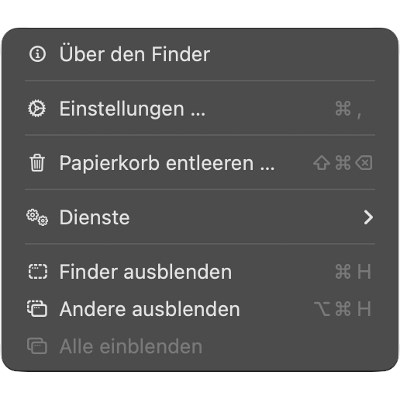


To make the so-called ActionImages disappear, you have to enter a command line command. Programs that are started in sequence have significantly fewer small icons in the menu. To do this, start the Terminal utility and type the following line:
defaults write -g NSMenuEnableActionImages -bool NO
Confirm your entry with the Enter key. You can then close the terminal app again. You must stop running programs and start them again to see the effect of the configuration change.


Safari 26.4’s File and Edit menus; on the left in standard form, on the right after entering the defaults-write command.
Mixed success
Interestingly, this doesn’t make all the symbols disappear; some remain even after this change. If an ActionImage appears in the same segment of menu commands, all entries in that area remain indented. However, if all symbols in an area have disappeared, the collected commands slide collectively to the left. This creates quite a mess in some menus.
Back to default
To restore the original state, enter the same command again in the terminal, but change the last word from NO to YES:
defaults write -g NSMenuEnableActionImages -bool YES
In this case, too, confirm by pressing Enter, exit Terminal and restart running programs so that the change is implemented.
Meaning doubtful
In a long blog post, John Gruber explains why he considers the omnipresence of icons to be wrong: In special cases, highlighting them with symbols is worthwhile; Occasionally, a well-chosen symbol can make it easier to find – for example when rotating images. However, if all commands had an icon, they would hinder clarity rather than create it. Apple itself explained this impressively in the past in the Human Interface Guidelines, only to later ignore it itself.