


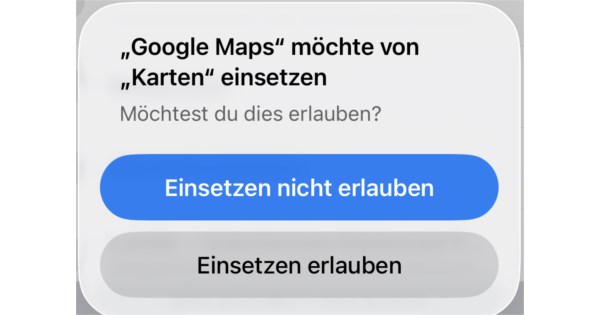


Warnings when automatically pasting from the clipboard
If you mark text on your iPhone and then copy or cut it to paste it into another app, you can usually do this without any intermediate steps. The situation is different if an application accesses the clipboard on its own: Since iOS 16.1, the operating system has informed about this practice and asks the user whether they would like to give their blessing to the action. Google Maps, for example, searches for addresses in the clipboard: If one is found, the app wants to paste it directly into the search field.


This may be convenient in many cases, but it also involves risks: Apps could access sensitive data in this way. The warning message with the demand therefore makes perfect sense. However, for apps that users completely trust, this security measure can prove disruptive. Apple therefore allows you to turn off the notification, although there is no global configuration for this.
Note can be turned off for each app in the settings
Instead, users have to go to the settings, go to “Apps” and select the desired option for each individual application separately:


The setting is called “Use from other apps” and only appears in software that has already requested access to the clipboard. Users have the choice between three options:


By default, “Ask” is turned on. “Reject” prevents unsolicited access to data from the clipboard and “Allow” eliminates the selection dialog. The latter option should of course be chosen carefully.