


Switching between iPhone and Android has long been complicated. In particular, the transfer of WhatsApp chats could usually only be carried out using tricks. Now the messenger has introduced an official solution that makes the move much easier. We’ll show you how you can now transfer your WhatsApp chats across platforms and thus make it easier to take your data with you in the future.
WhatsApp is by far the most popular messenger worldwide. The app from Meta has around three billion active users every month – comparable to the social networks Instagram and Facebook.
Many people have accumulated countless personal data in the app over the years – from important information to photos, videos and entire conversation histories. Of course, it’s all the more annoying when all of this content is lost when you switch to a new smartphone.
Switching between iPhones and Android devices in particular caused problems for a long time. While chats can be transferred relatively easily within the same platform, moving between the two systems was often complicated, incomplete or only possible with unofficial solutions.
But that should now be a thing of the past, because WhatsApp now offers a new way to transfer chats across platforms. We’ll show you how you can do this in the future without going through third-party providers.
Between iOS and Android: Transfer chats on WhatsApp
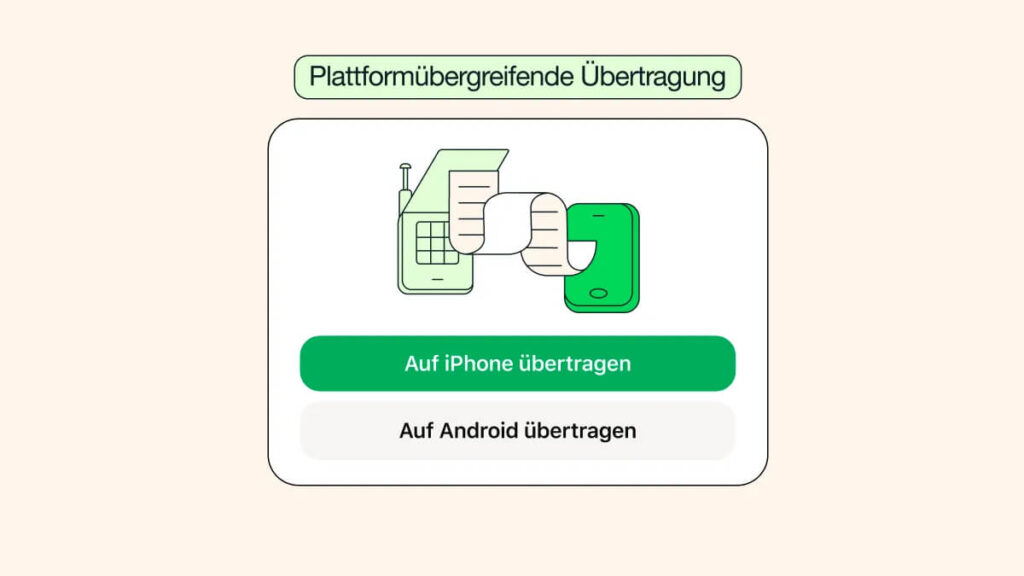
WhatsApp wants to make transferring from iOS to Android much easier with the new “Transfer Chats” function. According to the messaging service, the change should be made easily in the future with just “a few taps”.
Since WhatsApp carries out the transfer itself, all messages are protected by end-to-end encryption during the process. You can transfer the following information from iOS to Android:
- Account information
- One-on-one chats
- Group chats
- Communities
- WhatsApp channel notifications
- Chat history
- Call history
- Media and Settings
In order for the migration of your WhatsApp account to go smoothly, a few requirements must be met. Your Android device must have at least Android 10 installed. You also have to use the same phone number on your new device as on the old one. Also make sure that the latest WhatsApp version is installed on both devices and your WiFi connection is stable.
Step by step: This is how you can transfer your chats on WhatsApp
You can transfer your chats in just a few steps. However, the duration depends on how much data needs to be transferred. Open WhatsApp on your iPhone and navigate to your settings via your profile picture in the bottom right corner. Here, select Chats and then click on “Transfer chat history”.
Here you now have the option to choose between “Transfer to iPhone” and “Transfer to Android device”. Tap the latter button to prepare your chats and then confirm with “Next”. Now open WhatsApp on your Android device and verify your account with your phone number. Click “Allow” to allow your two devices to connect.
A QR code will then be displayed on your Android device, which you must scan with your iPhone’s camera. Once the transfer is complete, you have to confirm again with “Continue” on your Android device and you can then access your chats.
WhatsApp points out that this transfer only works if the app was not yet activated on the new device. Merging new and old chats from the two devices is not possible in this way. If you have already used WhatsApp on your new device, you must first uninstall the app. Only after a new installation can you transfer your chats from iOS.
Also interesting: