


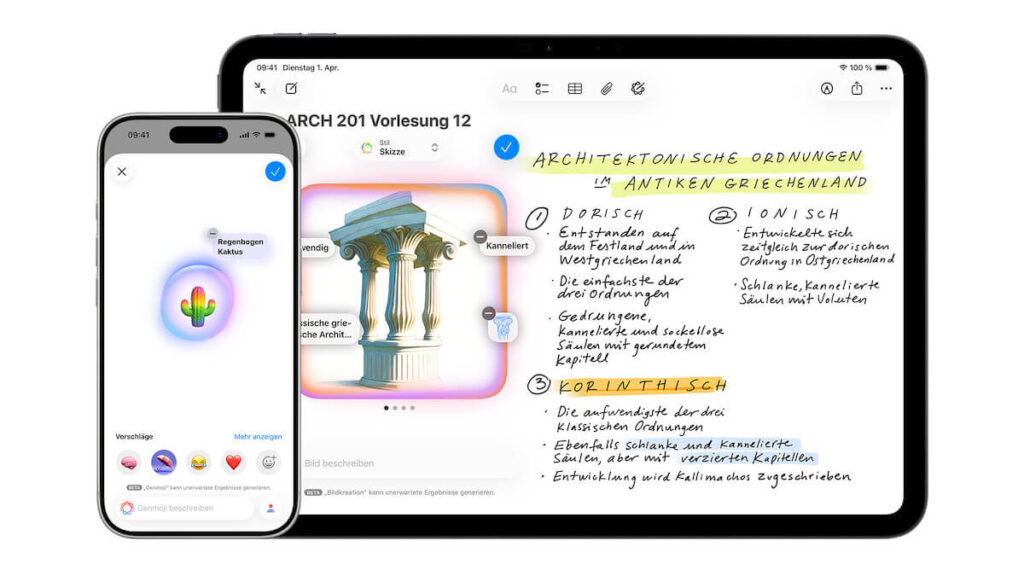
Apple has brought its own app for AI image generation directly to the iPhone, Image Playground. By entering text or using prefabricated concepts, images can be created, edited and integrated into other Apple apps in seconds. The function has also been available in Germany since spring 2025. We’ll show you what options Image Playground offers and how to use the app step by step.
What is Image Playground?
With Apple Intelligence, Apple has integrated its own AI directly into the iPhone, iPad and Mac. The system was presented for the first time in 2024 at the WWDC developer conference. In autumn 2024, Apple began to gradually introduce the functions and since spring 2025, Apple Intelligence has also been available in Germany and the EU.
The AI ecosystem from Apple includes, among other things, intelligent writing tools, a revision of the voice assistant Siri, automatic summaries and image functions. One of these applications is Image Playground.
The app allows users to create AI-generated images directly on the iPhone by entering text and then integrate them into other Apple applications. Here you can find out what you need to know about Apple’s AI app and how you can use it.
This is how you can use Apple’s AI app
To use Image Playground, some technical requirements must be met. The function is part of Apple Intelligence and therefore only runs on compatible devices.
This includes all iPhone models from the iPhone 15 Pro and iPhone 15 Pro Max. The devices from the iPhone 16 and iPhone 17 series as well as the iPhone Air are also compatible.
In addition, at least iOS 18.4 is required on the iPhone. Apple Intelligence and thus also Image Playground have only been officially available in Germany and the EU since this update.
If these requirements are met, you can use Apple Intelligence in the Image Playground app. According to Apple, you can combine concepts, text descriptions and people from your photo library “to create images in seconds.”
It is also possible to create images in Messages, Freeform, Keynote, Pages, Apple Invitations and supported third-party apps with the help of Image Playground.
Create or edit AI images with Image Playground on iPhone
With Image Playground you can either create a new image or edit existing images. Various concepts such as themes, facial expressions, costumes, accessories or locations are available to you.
If that’s not enough for you, the Describe Image function is available. To do this, you need to type in your descriptions and then click Send. Another option is the Select Person function. Here you can select a person from your photo library. However, that person must be named in the Photos app.
Apple offers different styles for finalizing your image. A distinction is made between the styles of Apple Intelligence and ChatGPT. Apple Intelligence offers styles such as animation, illustration or sketch. But you can also create a Genmoji, i.e. a personalized AI emoji.
If you choose ChatGPT, you can either select a preset style or choose the “Any Style” function. This allows you to describe the style you want by entering text.
In the preview function, Image Playground then offers you different versions, which you can select, delete or further refine. If you are happy with your image, tap the save button in the top right to save it to your gallery.
If you have edited an image that has already been saved, you can apply the changes by clicking on “Done”. You can still decide here whether you want to update the existing image or save it as a new image. A new hairstyle, extra glasses or a different facial hair – you can add all of this to an image from your photo library at Image Playground. To do this, use the “Adjust Appearance” function in your app.
It is also possible to use text input. For example, if you put glasses on a person but they are the wrong color, you can have them adjusted using a text instruction.
Use Image Playground in News or Freeform
By interlinking with other apps from the Apple ecosystem, it is possible to use Image Playground directly in Messages or Freeform, for example. You have easy access to this in your messages using the small plus next to your input field.
Simply select Image Playground here. You can now choose whether you want to use an image you have already created from your gallery. Alternatively, you can create a new image and then send it.
In Freeform you can also use up to six elements such as images or drawings from your board. All you have to do is tap the respective content and add it to Playground.
Also interesting: