


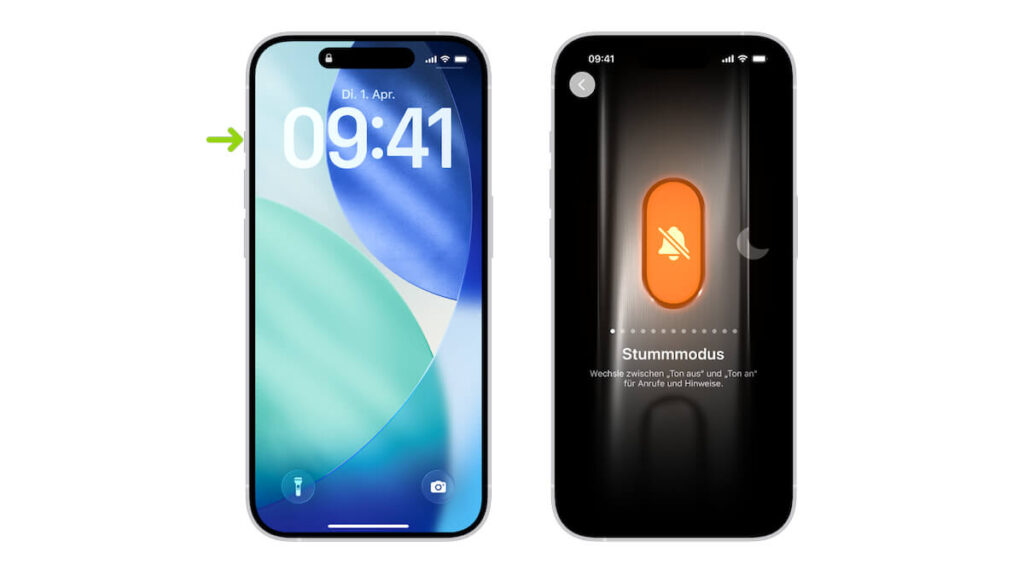
The action button on the iPhone can do much more than just mute the ringtone. There are a total of twelve different functions to choose from. However, many iPhone owners still only use the default setting. We’ll tell you which actions you can assign to the button and how you can change the setting in just a few seconds.
Since the introduction of the iPhone 15 models, Apple has made a small but momentous change to its operating concept. The classic mute switch on the upper left side of the iPhone had to give way to a freely assignable action button.
This now offers significantly more flexibility on the iPhone and can be assigned various functions. We’ll show you how you can set the action button on your iPhone to your liking and what functions are possible.
Assigning an action button on the iPhone: Here’s how to do it step by step
On newer iPhone models, there is an action button instead of the ring or mute switch. You can decide individually which function should be stored here.
As a standard setting, Apple has assigned the button the usual function. You can mute or unmute your iPhone by long-pressing the action button.
In addition to a notification on your screen, you will also receive haptic feedback from your iPhone when the action has been carried out. This is a slightly longer vibration for muting and for unmuting.
If you want to know which mode your iPhone is currently in, just press the button briefly. Your iPhone will then show you whether the sound is on or off.
If you prefer to assign another function to the button that you use more often in everyday life, you can adjust this in the settings of your iPhone. To do this, open the Settings app and navigate to the Action button area.
An image of your iPhone’s side will now appear with various symbols for functions that you can assign to your action button. Swipe here to the corresponding function that you want to assign to your key.
All 12 functions of the iPhone action button at a glance
In addition to turning your ringtone on and off, you can choose from other functions on your iPhone. These include the actions:
- Silent mode
- focus
- camera
- Visual Intelligence (only when using Apple Intelligence)
- flashlight
- Voice memo
- Recognize music
- Translate
- Magnifying glass
- steering
- Shortcut
- Accessibility
If you don’t want to use the button, you can choose the “No action” option. Please note that some functions require you to make additional settings. This applies, for example, to focus, camera or shortcut. If no option is selected here, the action button has no function.
Also interesting: